Digital Learning at Hipperholme
Google Workspace for Education, Google Classroom & Digital Learning
Our teachers use a range of digital tools and online applications to enhance our students individualised learning journey when either working at school or working from home. Our teachers integrate these tools into their lessons; to make the excitement about the learning and not about the tool. The technology we use is a part of the student’s classroom toolkit, just like any other resource.
The digital revolution demands that we are constantly innovating, exploring new ways to learn and teach. We want to equip all of our students with a skill set that will allow them to flourish and prepare them for jobs that don’t yet exist.
We transform what happens inside and outside the classroom by using leading practices in the purposeful use of technology.
- What is Google Workspace for Education?
- How do I start using Google Workspace Suite for Education?
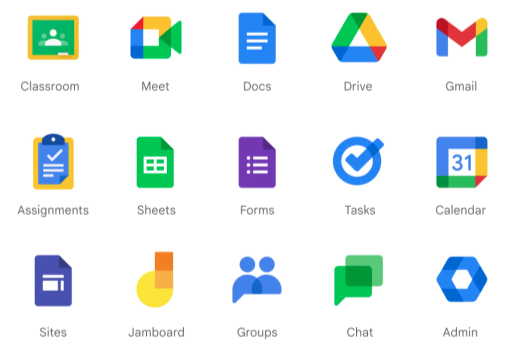
- What are the Google Workspace apps?
- How should students be using Google Classroom?
- Need help or support with Google Classroom?
What is Google Workspace for Education?
More than just a tool for storage or searching, Google Workspace for Education offers everyone at Hipperholme a set of applications that have revolutionised previous systems of teaching and learning. With Google Workspace for Education, communication, collaboration and feedback are simple, instant and effective. Students and Teachers find that these provide an easy way to collaborate, innovate and stay organised.
How do I start using Google Workplace for Education?
The best way to get started and get the full experience of Google Workspace and Google Classroom for students working from home or at school is to either use or purchase a School Chromebook or download Google Chrome on the device that they are working on at home (eg a Windows PC or Mac PC). This will allow students to log in to Chrome, and keep their school account and work completely separate from any other accounts when using shared devices at home. We do recommend that ideally this is on Chromebook, Windows or Mac PC/laptop with a keyboard and mouse. Google Chrome can also be downloaded for Android and iOS tablets and mobile devices too.
Once you have downloaded Google Chrome and installed it on your PC or Mac, you’re ready to sign-in to your school Google account which will look something like bloggsj@hgsf.org.uk. We do recommend that you sign-in as a new ‘person’ onto Google Chrome, as this will give you a separate profile and desktop shortcut to launch and will keep your school account entirely separate from any others you have, or anyone else uses at home.
If you’re unsure of how to do this then watch how to sign-in to Google Chrome
What are the Google Workspace apps?
The Google Workspace for Education applications (or apps) are a set of Google tools and services that are tailored for schools and colleges to collaborate, streamline instruction, and keep learning safe. Apps work together to provide an integrated range of tools for staff and students to use and can be switched ‘on’ or ‘off’ depending on the child’s age or job role of the member of staff by the school IT Manager/administrator.
At Hipperholme we have the enhanced version called ‘Education Plus’ which provides increased security, control and safety for all users as well as some additional features for educators.
Google Classroom is an online application that is part of the Google Workspace for Education platform developed by Google for schools, which aims to simplify creating, distributing, and grading assignments in a paperless way. The primary purpose of Classroom is to streamline the sharing files between teachers and students and see everything in one place and combines:
- Drive (where all files are created, stored and distributed),
- Docs (for creating documents)
- Sheets (for creating spreadsheets)
- Slides (for creating presentations)
- Drawings (for creating single-page posters)
- Gmail (for email and communication)
- Calendar (for scheduling tasks and where you can see assignment dues dates set by teachers)
- Meet (for online meetings and video conference calls)
- Forms (used for creating surveys and collecting information)
- Jamboard (a digital whiteboard that lets you collaborate in real-time)
Students can be invited to join a teacher’s Class using a code, or automatically added as a Classroom group. Each Class creates a separate folder in the student’s Google Drive. When the student submits work to be assessed by a teacher, Classroom locks the return whilst the teacher marks the work and adds their comments. It is then shared back with the student. Mobile apps, available for iOS and Android devices, let students and teachers take photos and attach them to assignments, share files from other apps, and access information on mobile devices if signed into their School Google account. Teachers can monitor the progress of each student, and after being assessed, teachers can return work along with comments to the students individually.
All of these Google products can be accessed in a Chrome browser on a Chromebook, Windows PC or Mac device as well as in a Chrome browser on an Android or iOS smartphone or tablet provided the student signs in with their Google School account. These can all be downloaded as individual apps for either the Android or iOS app store.
How Students should be using Google Classroom (Guide for Parents and Students)?
Watch this guide to see how your students should access their work in Google Classroom and how they can get around each Class and each Assignment.
The video shows students how they can:
- see their assignments in Classwork for each Class and see the ‘due dates’
- filter to ‘view their work’ to see which assignments are ‘assigned’, ‘returned with grade’ or ‘missing’
- see their ‘to-do’ list for all Assignments for all Classes
- view each Assignment
- ‘Hand-in’ (turn-in) work
- include or create additional resources to ‘hand-in’ (such as photos, or other documents) for each Assignment
- ‘Unsubmit’ a piece of work if they need to continue working on their files
- leave either ‘class comments to the whole Class or ‘private comments’ for the Teacher only
- see their grade when the Assignment has been returned by the Teacher
Need Help or Support with Google Classroom?
If parents or students have any questions about the work assigned, please ask your Teacher in either the ‘private comments’ section with each assignment, or add a ‘comment’ the Classroom ‘stream’.
If you or your child require any help with any aspect of accessing Google Classroom, Signing In, or using their School Google Account please contact me with details of the help you require and I will get back to you as soon as possible.
Andy Eastcrabbe
IT Manager